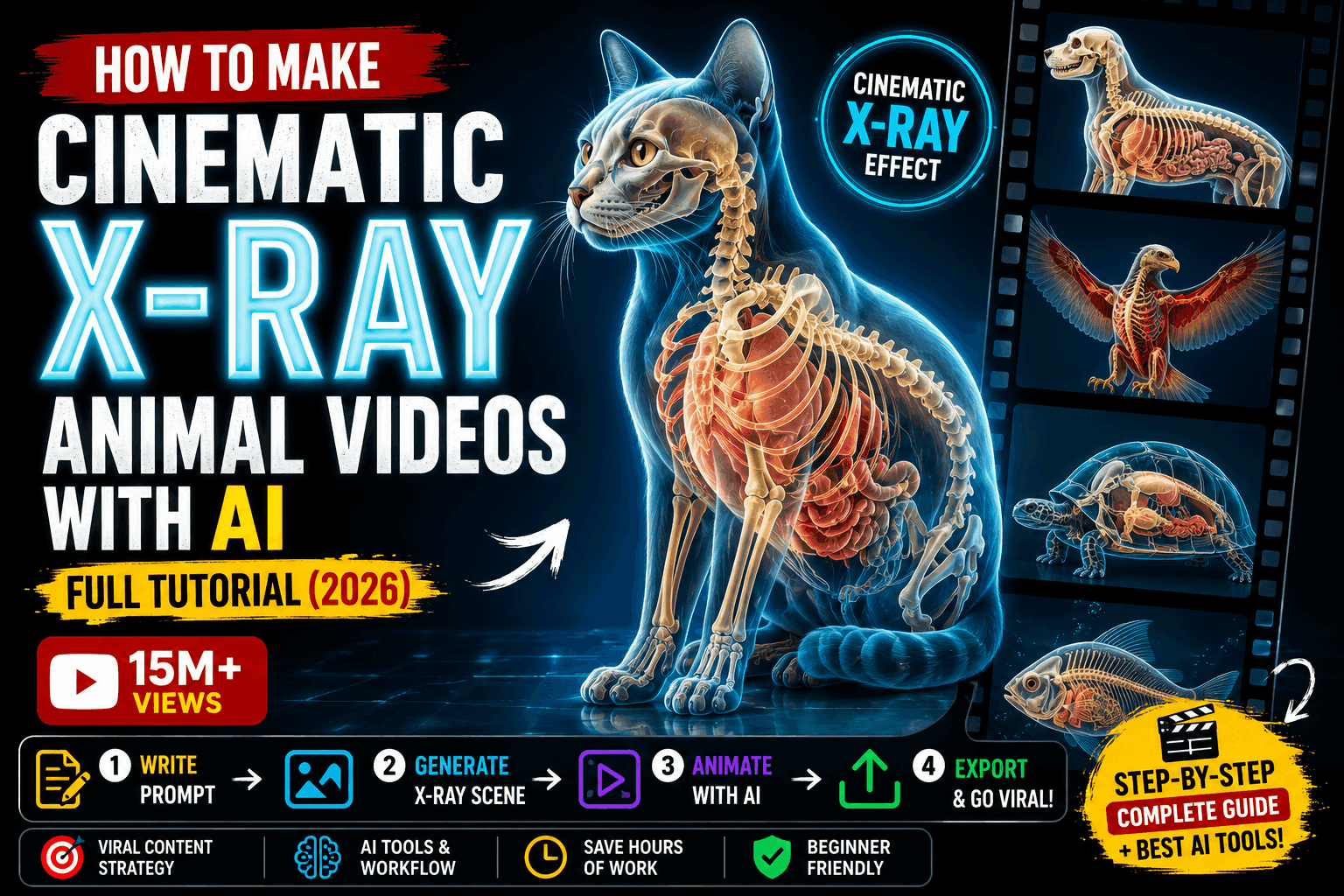
A new trend has taken over social media — X-Ray Animal Videos, where the camera seems to “see inside” an animal, revealing its skeleton, bones, and internal movement in a glowing, futuristic X-ray scan style. The effect is so visually unique and satisfying that views and shares tend to explode. The best part is you don’t need any medical imaging software or a VFX studio to create this cinematic effect — just three AI tools handle the entire job: Claude/ChatGPT, Flow AI, and CapCut.
In this article, we’ll break down the complete process step by step, from idea to final export, plus a ready-to-use Master Prompt you can use to create your own first viral X-ray animal video.
Why Are X-Ray Animal Videos Going So Viral?
The X-ray effect triggers curiosity in the viewer — we’ve all wondered at some point “what’s actually happening inside this animal’s body when it runs or flies.” When AI turns that curiosity into a glowing, semi-transparent visual, the result becomes a “wow factor” piece of content that feels both educational and visually stunning. This combination — curiosity plus aesthetics — is the perfect formula for the algorithm, driving both high watch time and high shares.
What You’ll Need for This Workflow
The entire process breaks down into 4 stages, each powered by a dedicated tool:
- Ideation & Prompt Engineering — Claude or ChatGPT
- Image Generation — Flow AI (Google Labs)
- Video Animation — Flow AI (Veo model)
- Video Editing & Final Polish — CapCut
Let’s walk through the entire process step by step.
Step 1: Ideation & Prompt Engineering (Claude or ChatGPT)
The first task is choosing a concept that’s visually striking. Writing “X-ray of an animal” isn’t enough — for a viral result, you need to define specific anatomy detail + motion + lighting style.
Here’s how you can use Claude or ChatGPT:
- Identify trending X-ray content niches (running cheetah, flying eagle, swimming shark, jumping frog, galloping horse)
- Write a detailed scene description that clearly defines the bones, muscles, and internal structure’s glow style
- Convert the concept into an image-generation-ready prompt that Flow AI can understand directly
- Write a hook caption, hashtags, and trending audio suggestions that stop the viewer from scrolling
Pro Tip: Never ask Claude or ChatGPT for a generic prompt. First tell it exactly what X-ray style you want — a medical scan look (blue/white glow), a futuristic neon style, or a thermal-scan-like effect. This detail is what determines the quality of the final output.
Example conversation flow:
“I want a cinematic X-ray animal video idea for Instagram Reels, 15 seconds long, in a futuristic neon X-ray scan style. Suggest a concept, then write a detailed AI image-generation prompt for that idea.”
This should give you 3-4 scene options — pick whichever feels the most unique and visually strong.
Step 2: Image Generation (Flow AI)
Once your concept is finalized, the next step is creating the starting frame for that scene — essentially, an X-ray-style reference image of the animal. This is where Flow AI comes in — Google’s unified AI creative studio (available at flow.google), which uses the Imagen 4 model (“Nano Banana”) to generate detailed, high-quality images.
Here’s how to generate an X-ray image in Flow AI:
- Open your Flow AI account (a free tier is available with daily credits)
- In the “Generate Image” section, paste your detailed X-ray prompt — for example, “X-ray view of a cheetah mid-sprint, glowing blue skeletal structure visible through translucent body, dark background, cinematic lighting”
- Clearly specify the animal’s pose and angle (side-profile sprint, mid-air leap, underwater glide)
- Generate multiple variations and select the one where the glow effect and anatomy detail look the most realistic and cinematic
- Save the final image as an “ingredient” — you’ll animate it in the next step
The advantage of Flow AI is that the entire image-to-video workflow is available in a single workspace, so there’s no need to switch between separate tools.
Step 3: Video Animation (Flow AI — Veo Model)
Now it’s time to bring the static X-ray image to life. Inside Flow AI, the Veo 3.1 model handles image-to-video generation, and it can also generate native synchronized audio — like a heartbeat sound, footsteps, or an ambient sci-fi tone — saving you the extra step of sound design.
Here’s the process:
- Select your saved X-ray image in the “Image to Video” option
- Describe the camera and motion — for example, “slow-motion sprint with bones flexing,” “smooth gliding wing-flap motion,” “pulsing heartbeat glow effect”
- Set the duration (Flow AI typically generates 8-second clips per generation)
- If you need a longer video, use the “Extend” feature, which can chain clips together for up to roughly 2-2.5 minutes
- Once generated, preview the result — if the bone movement looks unnatural or glitchy, refine your prompt and try again
Important: Motion in X-ray style videos can be a bit tricky to get right — it’s completely normal if the first generation isn’t perfect, and trying 2-3 variations is expected. Pick whichever version looks the smoothest and most scientifically plausible for your final export.
Step 4: Video Editing (CapCut)
The final polish that turns a raw AI clip into cinematic, viral-ready content happens in CapCut. CapCut is free, available on both mobile and desktop, and has become the industry-standard tool for short-form editing.
Follow these steps in CapCut:
- Import your generated X-ray video clip
- Trim and stitch multiple clips together to create a smooth transformation story (you can also add a normal-view-to-X-ray transition effect)
- Add sci-fi or cinematic background music/sound effects (if Flow AI’s native audio isn’t enough on its own)
- Apply glow/blue-tint color grading to enhance the X-ray feel further
- Add dynamic text overlays — display your hook line within the first 2 seconds
- Auto-generate captions so engagement holds up even during silent scrolling
- Set the aspect ratio according to the platform (9:16 for Reels/TikTok/Shorts)
- Export in high resolution and upload
MASTER PROMPT: Viral X-Ray Animal Videos
Here’s a ready-to-use template you can customize through Claude/ChatGPT and then use in Flow AI:
ROLE: You are an expert AI video prompt engineer specializing in
creating viral cinematic X-ray-style animal content.

TASK: I need a cinematic X-ray-style scene of a [ANIMAL NAME], where
its skeleton and internal anatomy are visible during motion.

DETAILS:
- Action/Pose: [e.g., full sprint, mid-air leap, underwater glide,
  wing flap in flight]
- X-ray style: [e.g., medical blue/white glow, futuristic neon scan,
  thermal-style glow, holographic transparency]
- Background: [e.g., pure black studio backdrop, dark gradient,
  subtle grid/scan-lines]
- Camera movement: [e.g., slow-motion tracking shot, side-profile pan,
  close-up on moving joints]
- Style: ultra-realistic anatomy, cinematic lighting, sharp detail on
  bones/muscles, smooth glowing transparency, 4K detail
- Duration: 8 seconds (extendable)
- Audio: subtle ambient hum / heartbeat / sci-fi scan sound, no music

OUTPUT FORMAT:
1. One detailed image-generation prompt (for Flow AI's image tool)
2. One video-animation prompt describing camera and motion (for Flow
   AI's Veo model)
3. A 3-5 word hook caption for the first 2 seconds of the video
4. 5 relevant trending hashtags
Simply swap out the [ANIMAL NAME] and [DETAILS] each time to generate unlimited unique X-ray video concepts — cheetahs, eagles, sharks, horses, frogs, or anything else that fits your niche.
Tips to Help Your Videos Go Viral
- Use a transformation moment: Starting the video in a normal animal view before transitioning into X-ray mode adds extra engagement
- Keep the anatomy believable: If the bone movement doesn’t match natural motion, viewers will notice quickly — refining the prompt is essential
- Maintain glow consistency: Stick to a single color tone (blue/neon/white) throughout the video for a professional feel
- Stay niche-specific: Focusing on a single category — predators, birds, or marine animals — helps you build a following faster
- Use trending sounds: Sci-fi or cinematic trending audio pairs best with this style
Common Mistakes to Avoid
- Writing generic prompts (“x-ray of a tiger”) — specific anatomy and glow style detail are what determine output quality
- Keeping the background busy or distracting — a clean dark background makes the X-ray effect stand out more
- Uploading without color grading — raw AI output never looks as polished as a finished cinematic edit
- Exporting the wrong aspect ratio — every platform has its own preferred format
Conclusion
Making Cinematic X-Ray Animal Videos is no longer a job for medical visualization experts or VFX studios. Claude/ChatGPT for strong creative ideation, Flow AI for high-quality X-ray-style image and video generation, and CapCut for professional editing — together, these three tools give you a complete, beginner-friendly AI video pipeline. Use the Master Prompt template above to create your first viral X-ray animal video today, and build your content niche through consistency.