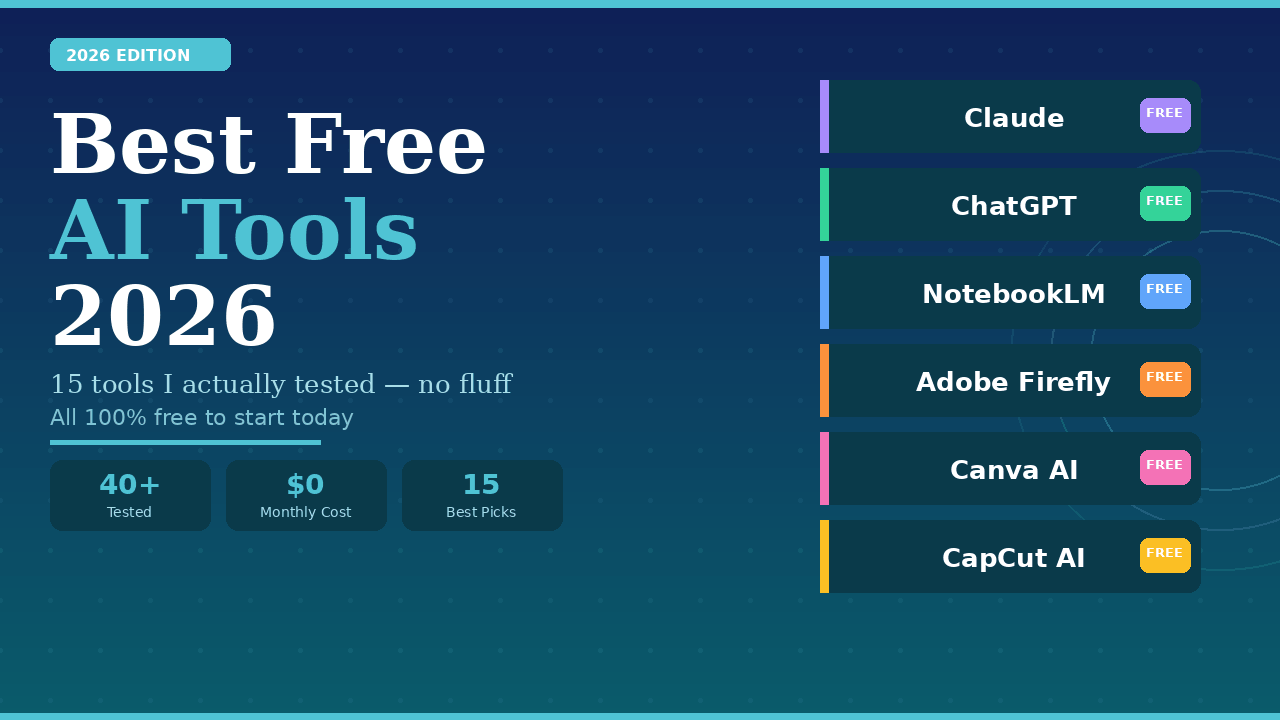
Let me be straight with you. A few months ago, I was spending around $180 per month on various software subscriptions — Jasper for writing, Midjourney for images, a transcription service for meetings. It felt justified at the time. Then I spent three weeks deliberately replacing every paid tool with a free AI alternative, just to see what would happen.
The result genuinely surprised me. For about 80% of my actual work, the free tools were just as good. In a couple of cases, they were better. I ended up canceling most of my subscriptions.
This article is what I wish had existed before that experiment. Not a generic list copied from other articles, but a real account of which free AI tools held up under daily professional use, which ones fell apart the moment you pushed them slightly beyond basic tasks, and which ones I quietly deleted after three days.
🧑💻 My Experience: I tested every tool on this list for at least two weeks with real work tasks — not carefully designed demo prompts. Tools that looked impressive in demos but failed in daily use did not make this list.
Why Most ‘Best Free AI Tools’ Articles Get It Wrong
Before the actual list: I want to explain why I built my own. Most roundups you find through Google are written by people who spent twenty minutes on each tool, grabbed a screenshot, and called it a review. They list Jasper, Copy.ai, and Grammarly as free tools — and then you sign up and discover the ‘free’ version allows you to write approximately one paragraph before hitting a paywall.
That experience is frustrating, and it wastes your time. Every tool on my list has a free plan that I have personally used for real work. I will tell you exactly what the limits are, what breaks first, and what you can honestly accomplish before you need to upgrade.
💥 Honest Take: If a free tool requires a credit card to sign up, I consider it semi-free at best. Most tools below require nothing but an email address.
The 15 Best Free AI Tools in 2026 — Tested and Ranked
Writing and Content Creation
- Claude by Anthropic — My Go-To Writing Partner
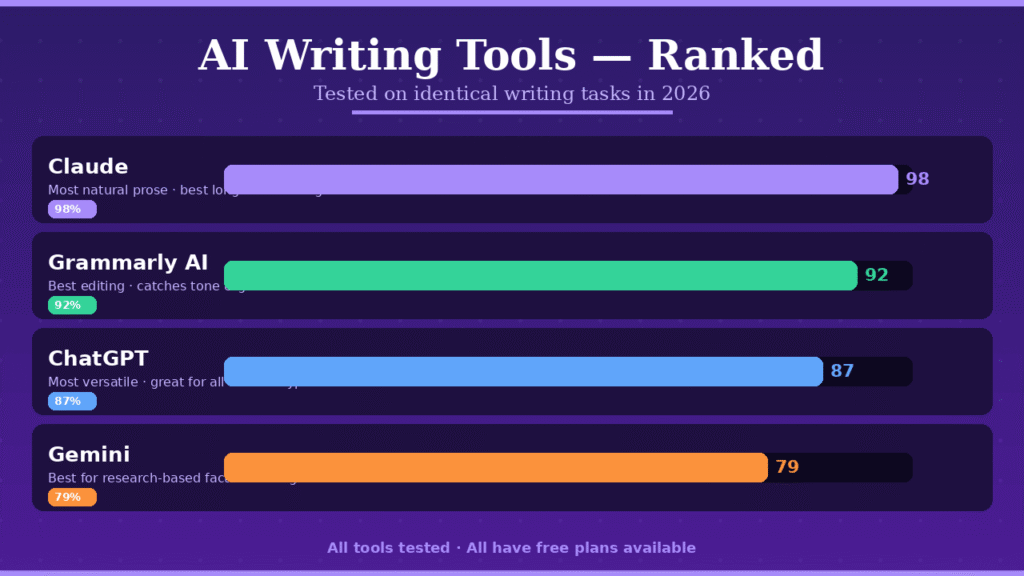
I will be honest: I switched from ChatGPT to Claude for writing tasks about eight months ago and have not seriously looked back. The difference is not dramatic on simple tasks like generating bullet points or rewriting a sentence. Where it becomes obvious is in longer pieces — anything over 800 words.
Claude writes with a rhythm. Sentences vary in length naturally. It does not repeat the same phrase three times in two paragraphs the way other AI tools often do. When I asked it to write a persuasive section for a client pitch, my client asked me who wrote it. That does not happen with most AI writing tools.
Free plan limits: Daily message cap, but generous enough for professional use. No credit card required. Context window up to 200,000 tokens — this is enormous and lets you feed it entire documents.
🧑💻 My Experience: I use Claude for first drafts of long articles, email sequences, and any writing where tone matters. The free plan covers everything I need for moderate-volume content work.
✅ Pro Tip: Give Claude a sample of your own writing and ask it to match your style. The result is significantly more natural than asking it to ‘write conversationally’. - ChatGPT Free — The Swiss Army Knife
ChatGPT is not my top choice for pure writing quality anymore, but it remains the most versatile free tool available. When I need to do five completely different things in one session — draft an email, debug a formula, generate a content calendar, summarize a document, and brainstorm hashtags — ChatGPT handles all of them without friction.
The free tier in 2026 runs GPT-4o Mini for standard tasks with periodic access to the full GPT-4o for more demanding prompts. I have noticed the quality varies more than Claude’s does, but the breadth of capability is unmatched.
💥 Honest Take: ChatGPT’s free plan feels generous until you hit a complex task that requires the full model and you get throttled. For consistent high-quality output on demanding work, the free tier can be unreliable. For everyday tasks, it is excellent. - Grammarly AI — The Safety Net I Never Turn Off
I have used Grammarly since 2019. Watching it evolve from a grammar checker into an AI writing assistant has been interesting. The free plan in 2026 catches the obvious errors but also flags tone issues, suggests structural improvements, and occasionally rewrites entire sentences in ways that actually improve my original.
What I appreciate most is that it runs in the background without requiring me to copy-paste anything. It works inside Gmail, WordPress, LinkedIn, and practically every text field I use. It is invisible until it catches something, which is exactly what a quality-control tool should be.
🧑💻 My Experience: I once sent a client email without running it through Grammarly and immediately spotted three awkward phrases that it would have caught. I did not make that mistake again.
Image Generation
- Adobe Firefly — The One I Actually Trust for Client Work
Here is the problem I had with most AI image generators: I could never be completely sure whether using the output commercially would cause legal issues. The training data for many tools is murky, and a couple of high-profile lawsuits made me cautious.
Adobe Firefly solved this for me. Adobe trained it on licensed Adobe Stock content and public domain material, which means the outputs are explicitly cleared for commercial use. When I am producing visuals for client projects, this matters enormously. The 25 free monthly credits reset monthly, which is not huge, but it covers my essential needs.
💥 Honest Take: Firefly’s image quality is genuinely good but not quite at Midjourney’s level for artistic or cinematic work. For clean, professional marketing visuals and illustrations, it absolutely delivers. For dramatic, highly artistic outputs, you will want something else. - Ideogram 2.0 — The One Nobody Talks About Enough
Generating images with readable text inside them has been AI image generation’s most persistent failure for years. Midjourney produces beautiful nonsense characters that look like text from a distance. DALL-E is better but still inconsistent. Ideogram was built specifically to solve this problem.
I use it almost exclusively for thumbnails, event graphics, and anything where the text in the image needs to actually say what I want it to say. The free tier is reasonably generous and the results are reliably accurate on text rendering.
🧑💻 My Experience: I made a YouTube thumbnail using Ideogram that included the title text inside the image. It worked perfectly on the first try. I then tried the same prompt in two other tools. Neither produced readable text after five attempts each.
Research and Knowledge Management
- NotebookLM — This One Changed How I Work
I want to spend more time on NotebookLM than any other tool on this list, because it is genuinely the most underrated free AI tool in 2026 and the one that made the biggest practical difference to my workflow.
The concept is simple: you upload your sources — PDFs, Google Docs, YouTube videos, websites, audio files — and it becomes an AI that knows only those sources. Every answer it gives you is grounded in what you uploaded, with specific citations. It does not hallucinate facts from the internet. It works with your material.
I used it to process a 280-page industry report that I genuinely did not have time to read properly. I uploaded it, asked 12 specific questions, and had actionable insights within 40 minutes. The same process manually would have taken me most of a day.
The Audio Overview feature is something I use every week. You can ask it to generate a podcast-style conversation discussing your uploaded content between two AI hosts. I use it to review meeting notes, research papers, and client briefs while I am doing other tasks.
🧑💻 My Experience: I uploaded three competitor websites, a market research report, and two client briefs into one notebook. Then I asked NotebookLM to identify gaps in my competitors’ content strategy based on what my clients were asking for. The output was more useful than anything I could have produced manually in the same time.
✅ Pro Tip: Create a separate notebook for each major project. NotebookLM’s organization system is clean and the 100-notebook limit on the free tier means you will not run out for a very long time. - Perplexity AI — My Research Starting Point
I use Perplexity when I need current, cited information fast. Unlike ChatGPT or Claude on their free tiers, Perplexity connects to the live web and gives you answers with source links. For verifying statistics, finding recent news, or checking whether something I half-remember is actually accurate, it is my first stop.
The honest limitation: its free tier has daily search limits that I sometimes hit on heavy research days. When that happens, I switch to Google with more specific queries. But for initial research on most topics, the free plan is sufficient.
Design and Visual Content
- Canva AI — Surprisingly Capable Free Tier
I am not a designer. I have made peace with this. Canva AI’s free plan is how I produce visual content that does not embarrass me. The AI features on the free plan are more limited than the paid version, but the template library alone contains more designs than I could use in a year.
What I genuinely appreciate is how quickly it surfaces relevant templates. I type ‘LinkedIn post tech startup’ and get twenty immediately usable options. The Magic Write feature for generating text within designs is included in the free plan and works well for short copy.
💥 Honest Take: If you regularly need to remove backgrounds, use brand kits, or access premium templates, the free plan will frustrate you. For a creator just starting out or producing occasional content, it is remarkably capable. - Microsoft Designer — Underrated, Especially If You Use Windows
Microsoft Designer does not get mentioned enough in free tool roundups, probably because it is less flashy than Canva. But if you are in the Microsoft ecosystem — using OneDrive, creating presentations, working in Office — its integration advantages are real. It generates layouts from text descriptions and its DALL-E integration makes custom image creation within designs straightforward.
Video and Audio
- CapCut AI — My Short-Form Video Secret Weapon
I resisted CapCut for longer than I should have because I associated it with TikTok dance videos. That was a mistake. The AI features in CapCut in 2026 are genuinely professional-grade and completely free. Automatic captioning that works. Background removal that works on video footage. Auto-cut that identifies the best moments from longer clips.
For short-form content — Reels, Shorts, TikTok — CapCut has eliminated what used to be a two-hour editing process for me. I can go from raw footage to a ready-to-post Reel in about 20 minutes including the captions and music.
🧑💻 My Experience: I am not a video editor by training. Before CapCut, I either outsourced short video content or skipped it. Now I produce it myself weekly. That shift happened entirely because the tool made it accessible. - ElevenLabs Free Tier — When You Need Real Voiceovers
The free plan gives you 10,000 characters per month, which sounds restrictive but covers most short-form content needs. What makes it worth including is the voice quality — it is genuinely the most natural-sounding text-to-speech available at any price point I have tested. I use it for short explainer clips and social media videos where recording my own voice would take longer.
Productivity and Workflow
- Notion AI — If You Live in Notion, This Is Essential
I use Notion for project management, content planning, meeting notes, and client documentation. Notion AI integrates directly into this environment, which means I do not have to copy and paste between tools. I can select a page of meeting notes and ask it to extract action items, summarize the discussion, or draft a follow-up email — all without leaving my workspace.
The free plan includes limited AI responses monthly. For light use, this is enough. For daily heavy use, you will hit the limit. But even the limited access significantly reduces the time I spend on administrative writing. - Otter.ai — The Meeting Tool I Could Not Work Without
300 minutes of transcription per month for free sounds like a lot until you realize how many hours of calls the average professional has in a week. I use Otter for every discovery call, strategy session, and interview. The real-time transcription is accurate enough that I stopped taking manual notes during calls entirely.
The AI-generated summaries are surprisingly good at identifying what actually mattered in a conversation versus the small talk and context-setting that fills the first ten minutes.
🧑💻 My Experience: I missed a key deliverable that a client mentioned in passing during a 90-minute call. After that, I started transcribing every call. I have not missed an action item since. - Google Gemini Free — Best When You Work In Google
Gemini’s advantage is straightforward: if your life is built around Gmail, Google Docs, Drive, and YouTube, Gemini integrates with all of it. Its free tier is the most generous of the three major AI chatbots — daily limits are higher and it rarely throttles you during normal use. The real-time web access on the free plan is a meaningful advantage over Claude and ChatGPT’s free tiers for research tasks. - Bing AI (Copilot) — The Forgotten One Worth Remembering
Microsoft’s Copilot runs GPT-4 on the free tier — the same model that ChatGPT Plus charges for. It has daily limits but if you hit ChatGPT’s free tier restrictions, Copilot is a genuinely good fallback. Image generation through DALL-E 3 is also included for free. Most people forget it exists, which means the servers are less congested and responses come faster than ChatGPT during peak hours.
💥 Honest Take: Copilot’s interface is less polished than ChatGPT, and the Microsoft integration can feel clunky. But the underlying model is strong, the free tier is generous, and it is severely underused relative to its actual capability.
How I Actually Use These Tools Together
Knowing which tools are good is one thing. Knowing how to combine them is what actually saves time. Here is my personal workflow:
My Daily Stack
- Morning: Perplexity for research on current topics and news relevant to my work.
- Writing: Claude for drafts. Grammarly running in the background on everything.
- Images: Firefly for commercial work. Ideogram for anything with text in it.
- Design: Canva for social media graphics and presentations.
- Video: CapCut for all short-form content. ElevenLabs when I need voiceover.
- Meetings: Otter.ai for every call, automatically.
- Research projects: NotebookLM when I have a set of documents to process.
The total cost of this stack: zero dollars. The time it saves me compared to not using these tools: I genuinely estimate four to six hours per week. That is time I use for the parts of my work that AI cannot do — building relationships, making strategic decisions, and creating things that require genuine human judgment.
The goal is not to use all 15 tools. It is to identify which three or four fit your specific workflow, master those, and stop adding new tools until you hit a genuine limitation.
Honest Answers to Common Questions
Are these tools actually free or is there a catch?
Every tool on this list has a genuinely useful free tier that I have tested personally. The catches: daily or monthly limits exist on all of them. Some advanced features require paid upgrades. A few tools that claim to be free have paywalls that appear quickly. None of the tools above hit you with an unexpected paywall before you can do real work — that is a core criterion for inclusion.
Will these free tools still be free next year?
Honestly, I cannot guarantee it. Free tiers change. What I can say is that all these tools are from companies large enough that their free tiers are strategic, not accidental — they serve as user acquisition funnels. Cutting them completely would cost users at scale, so companies are cautious about it. That said, limits can tighten. Building a workflow that uses two or three alternatives in each category gives you flexibility if one tool’s free plan changes.
Do I need technical skills to use these tools?
No. I have deliberately excluded tools that require technical setup. Every tool above works through a browser or a simple app download. The learning curve is measured in minutes, not days.
Can I use AI-generated content commercially?
For writing: ChatGPT’s and Claude’s terms of service allow commercial use of outputs. For images: Adobe Firefly is explicitly commercial-safe. Other image generators vary — always check the current terms of service for each specific tool before using outputs commercially.
Final Thoughts
The conversation around AI tools often gets polarized into two camps: people who think AI is cheating and people who think it replaces all human work. My experience falls somewhere more practical in the middle. These tools are genuinely useful. They are also genuinely limited in specific ways that matter.
The best AI tool is the one that handles the work you find tedious, leaving you more time and energy for the work that requires judgment, relationships, and creativity. For me, that mostly means writing first drafts, editing, research synthesis, and basic design. For you, the list will be different.
Start with two tools from this list, not fifteen. Master those. Notice where they fall short. Add the next tool to fill that specific gap. That approach builds a workflow that actually makes you faster — rather than a collection of accounts you opened and forgot.
If this article helped you, consider bookmarking it. I update it when tools change significantly — which in AI happens often.